08-VSCode Usage
The tutorial demonstrates the steps to install VSCode and SSH remote on Windows platform.
Users can use this method to remotely control motherboards such as Raspberry Pi and Jetson
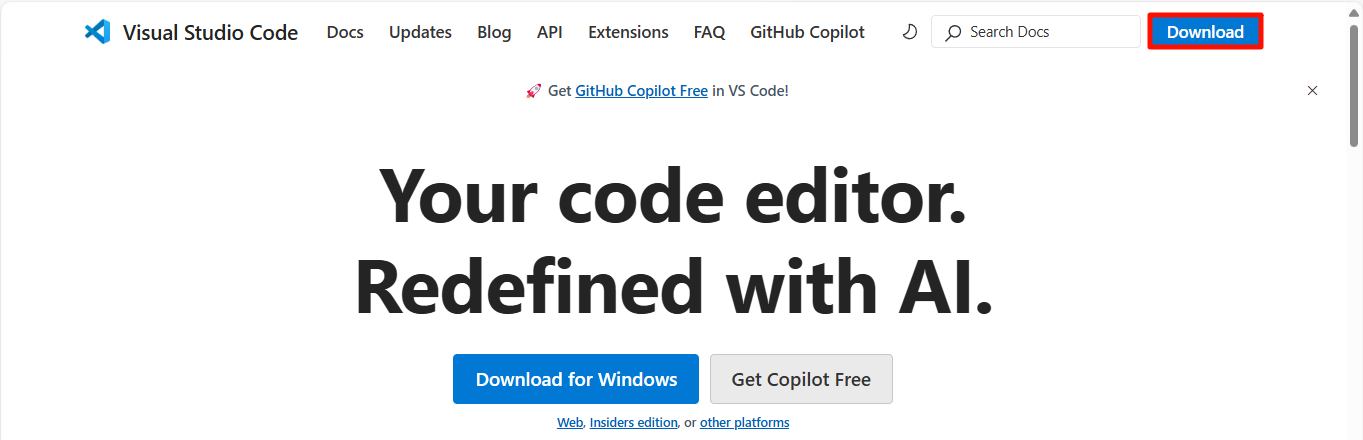
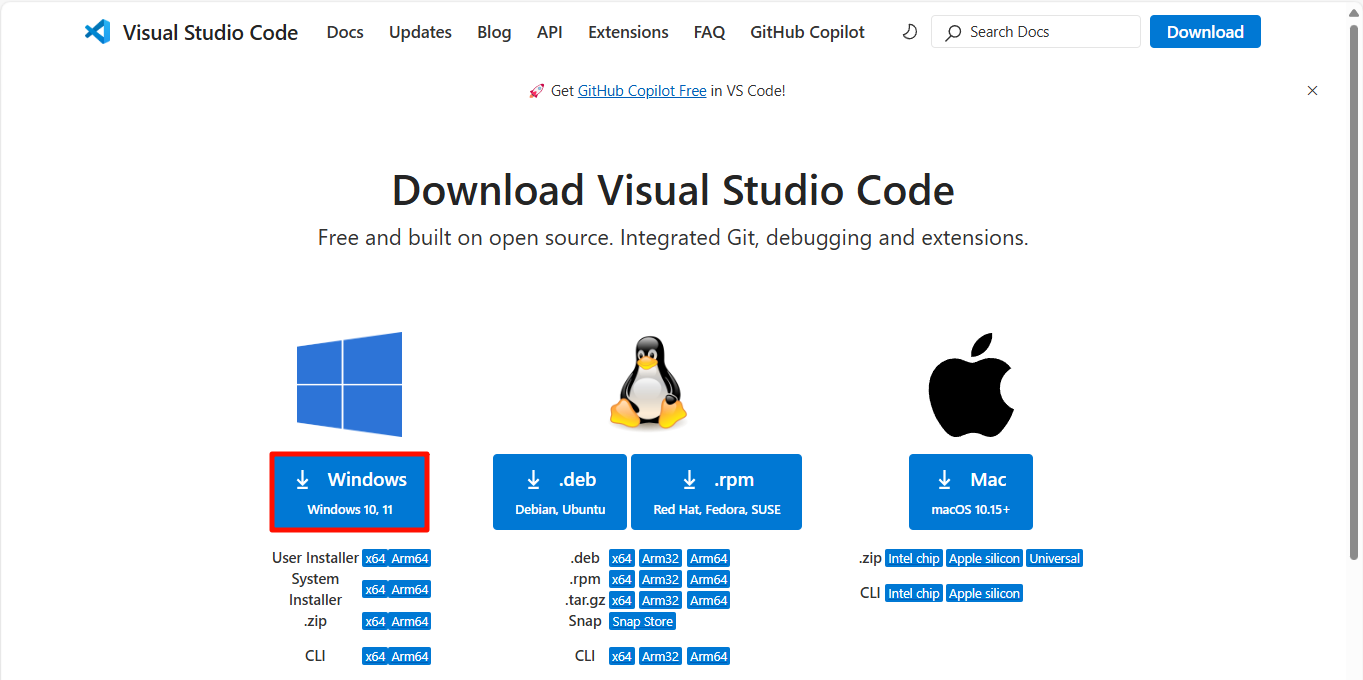
1. Download VSCode
Official website: https://code.visualstudio.com/
2. Install VSCode
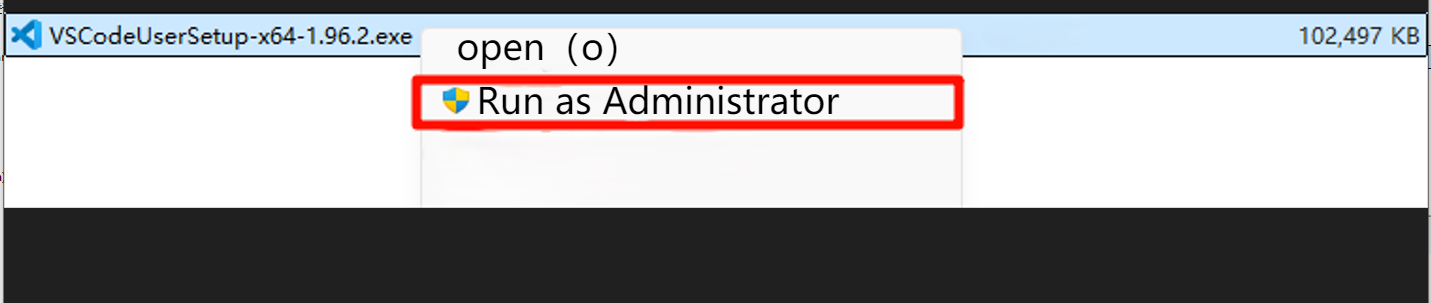
2.1. Open the installation package
Open VSCodeUserSetup-x64-xxx.exe as an administrator
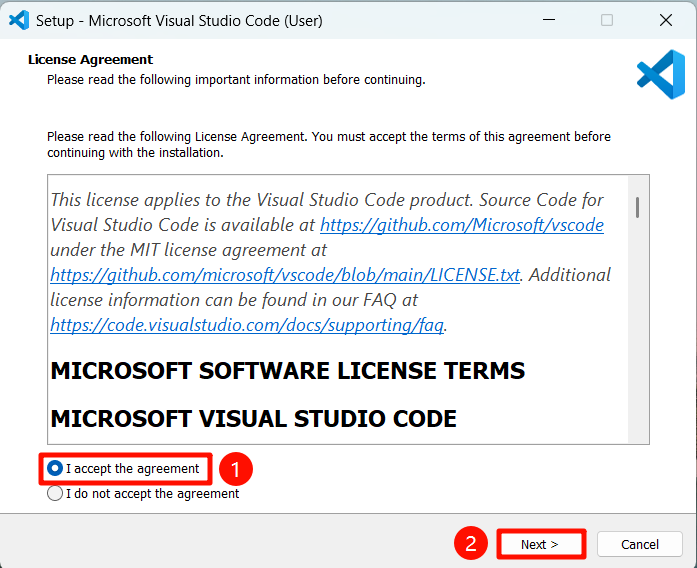
2.2. Agree to the agreement
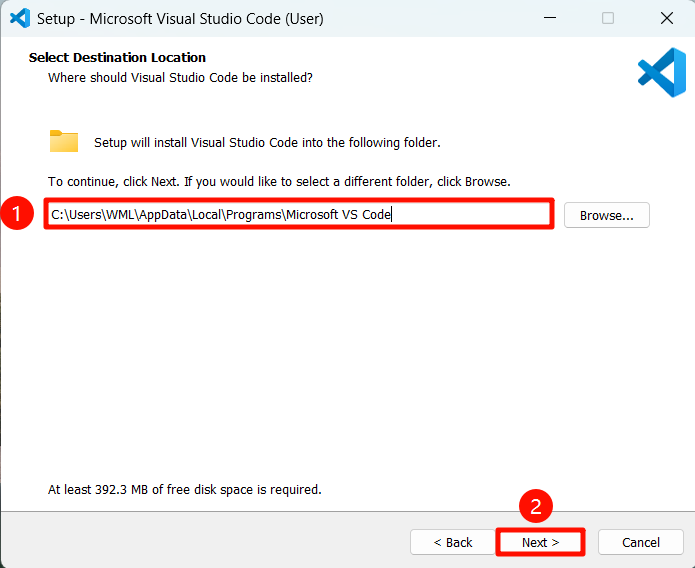
2.3. Installation location
It is recommended to select the default installation location of the software:
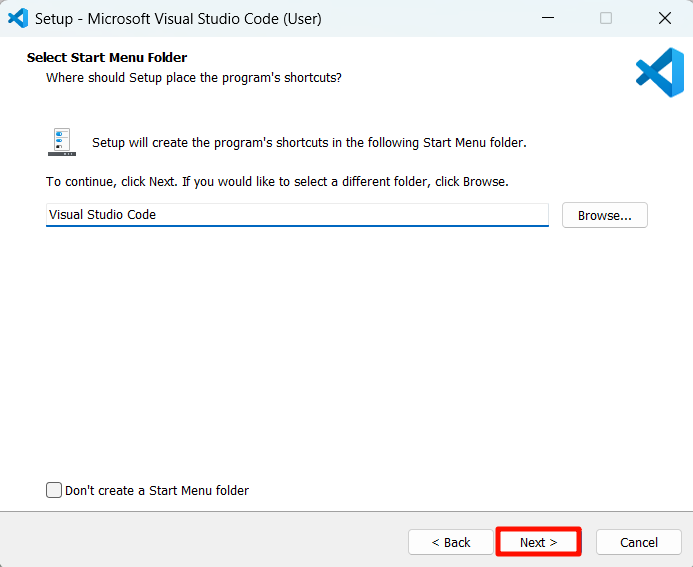
2.4. Installation options
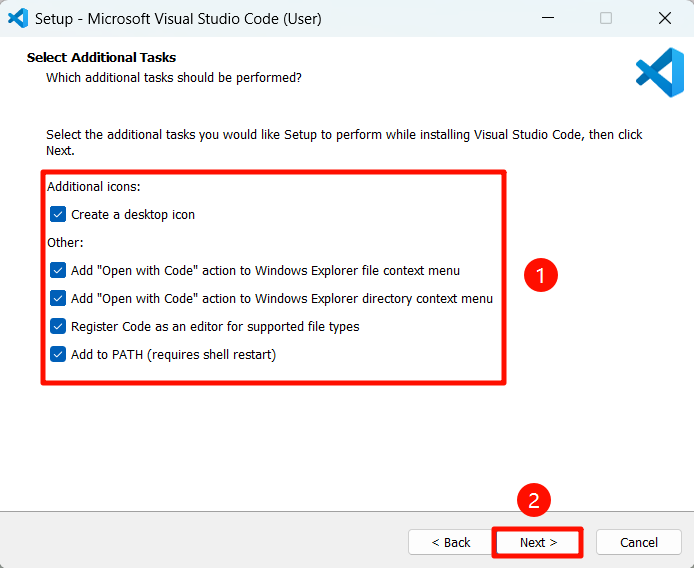
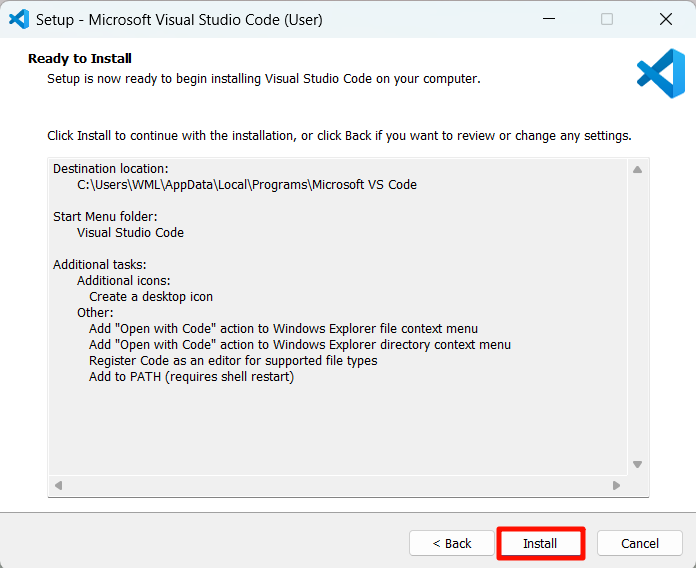
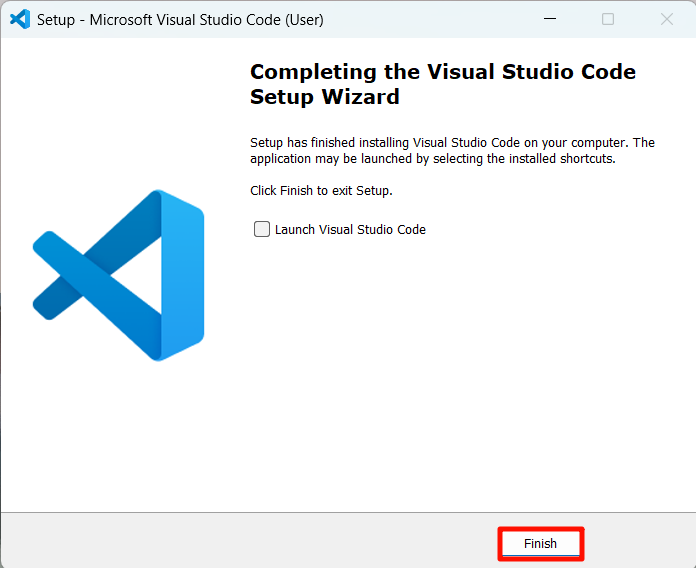
2.5. Complete the installation
3. Use VSCode
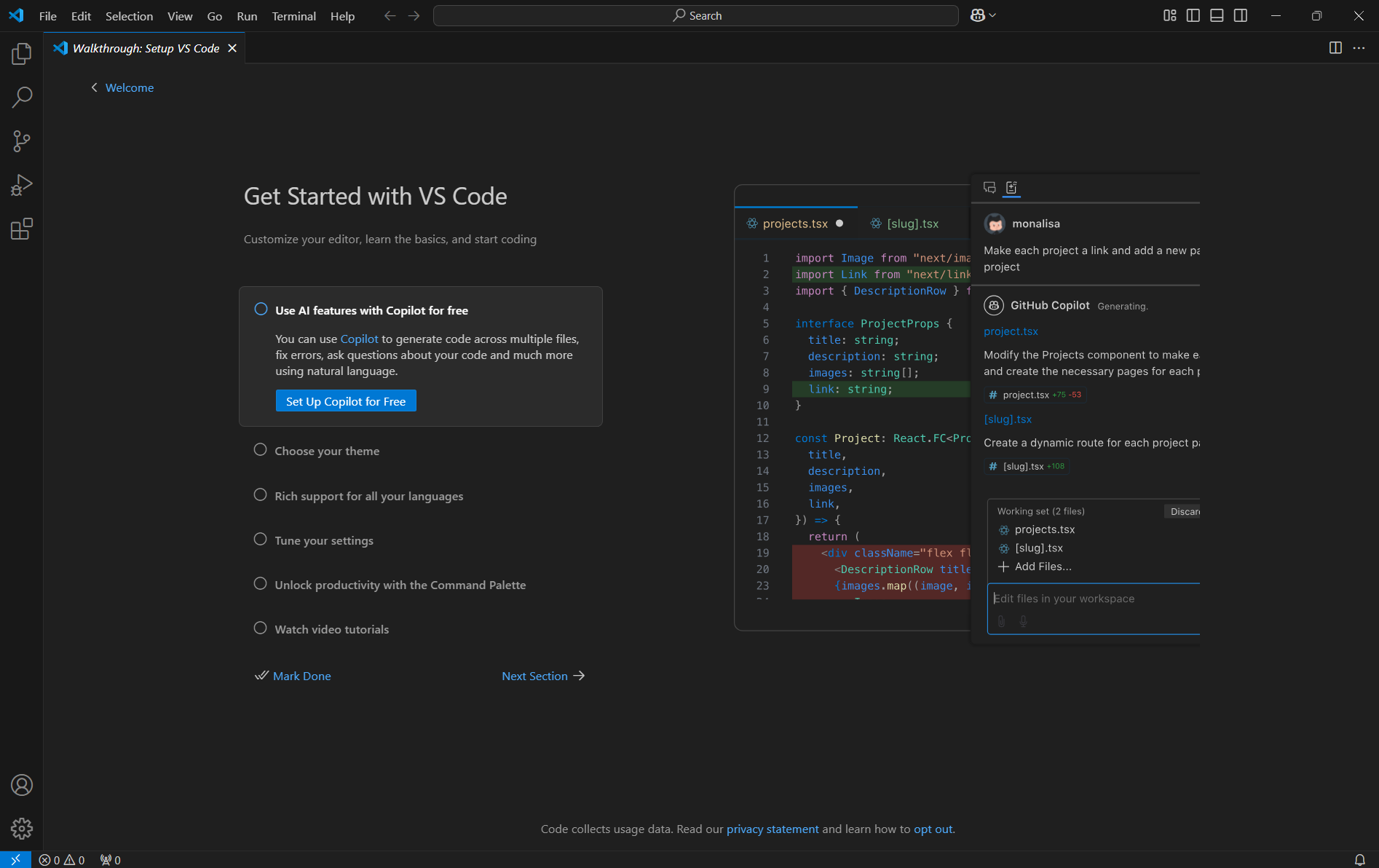
3.1. Basic use
Double-click "Visual Studio Code" icon to open the application:
3.2, Extended use
3.2.1, Basic extension
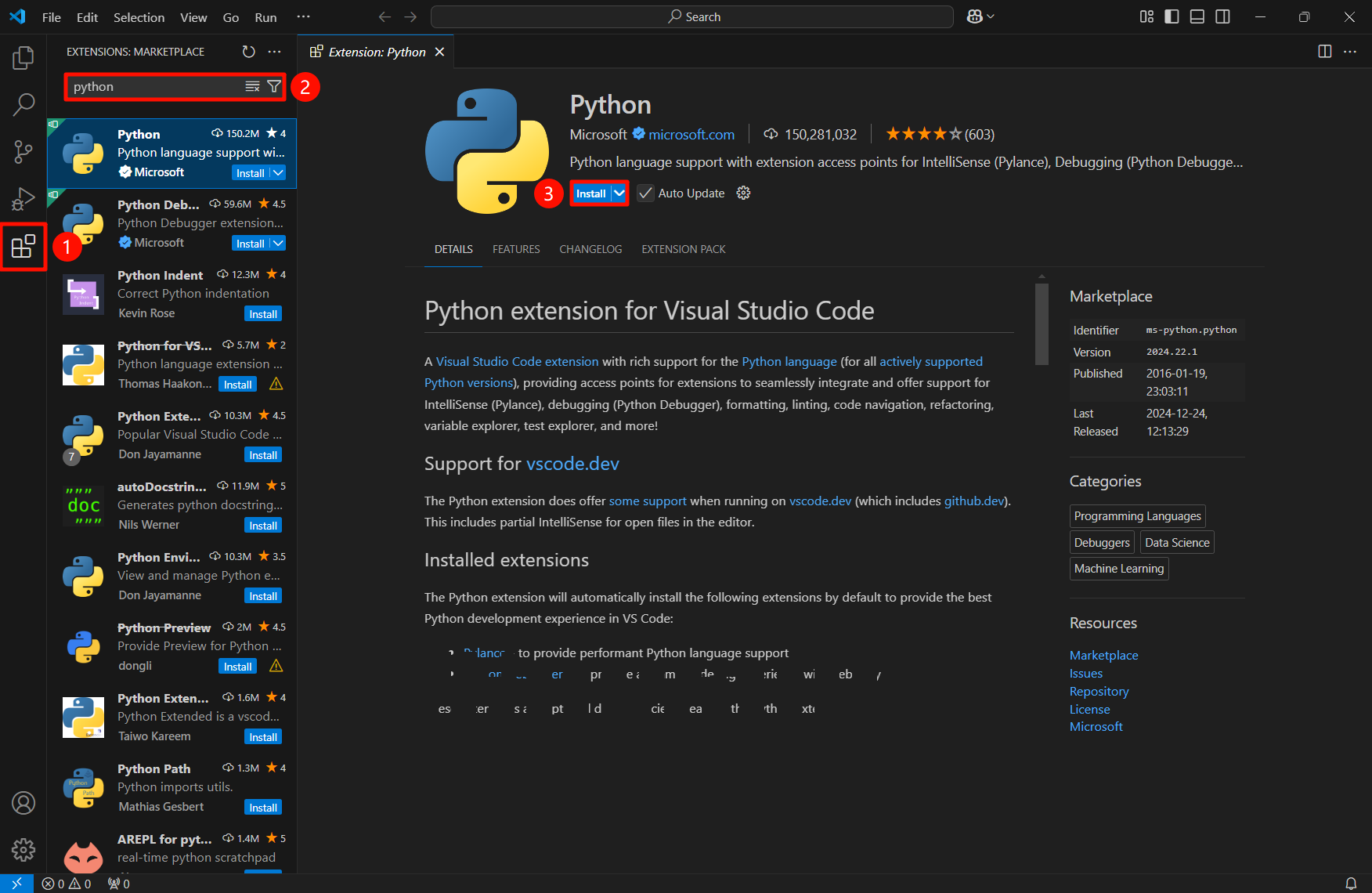
Python
Search for "python" in the extended search bar, and select Python to install:
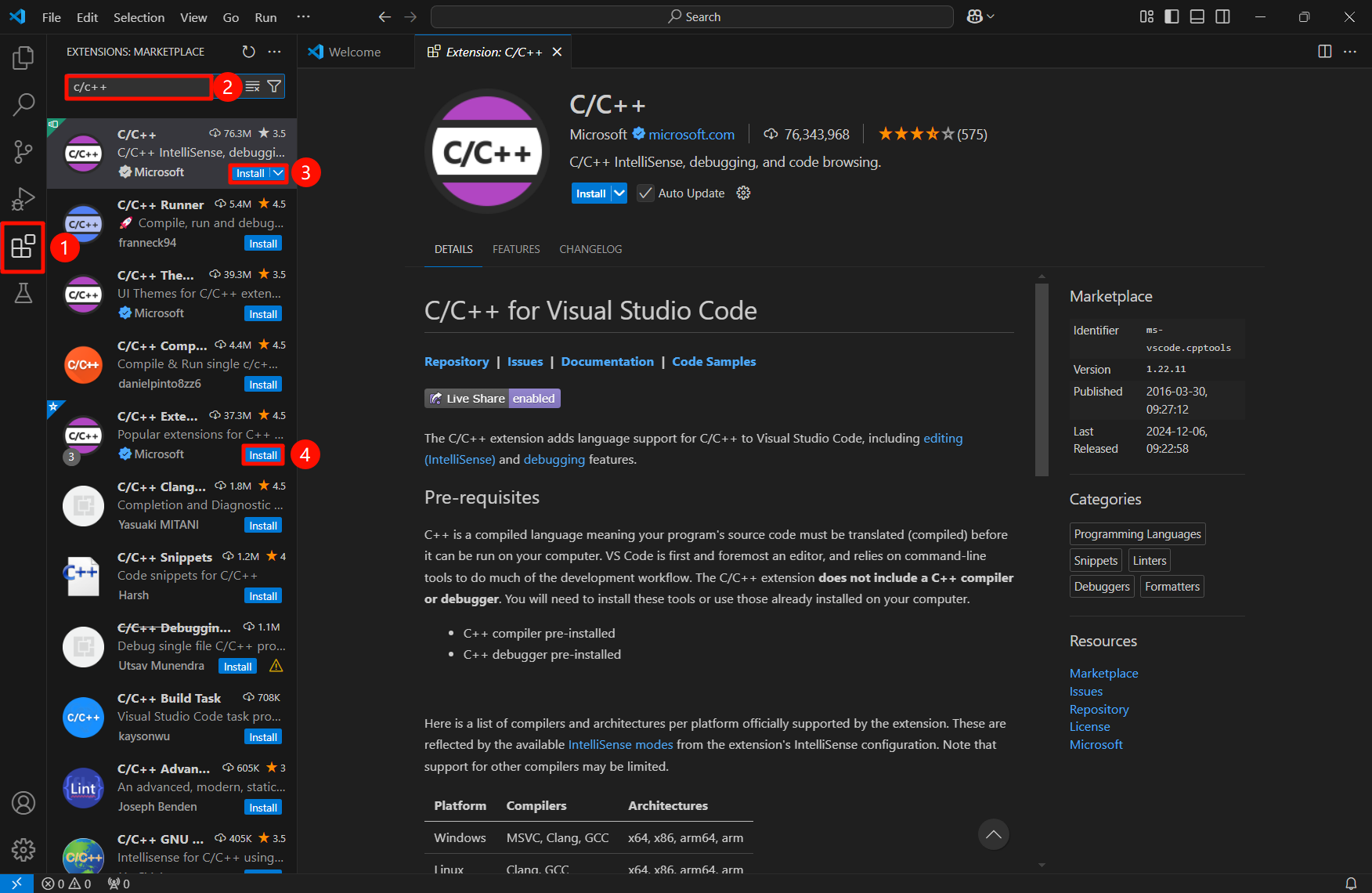
C/C++
Search for "c/c++" in the extended search bar, and select C/C++, C/C++ Extension Pack to install:
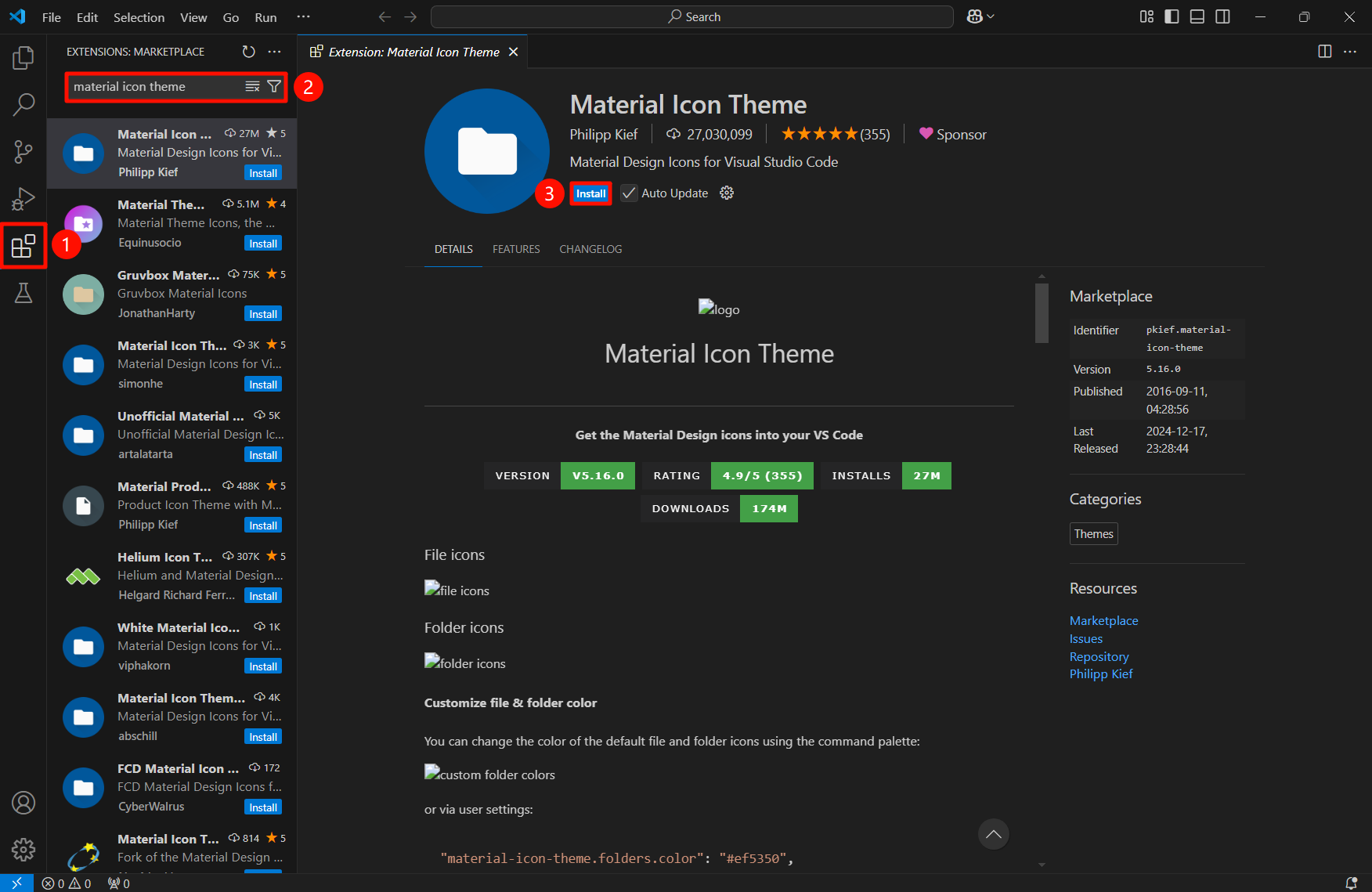
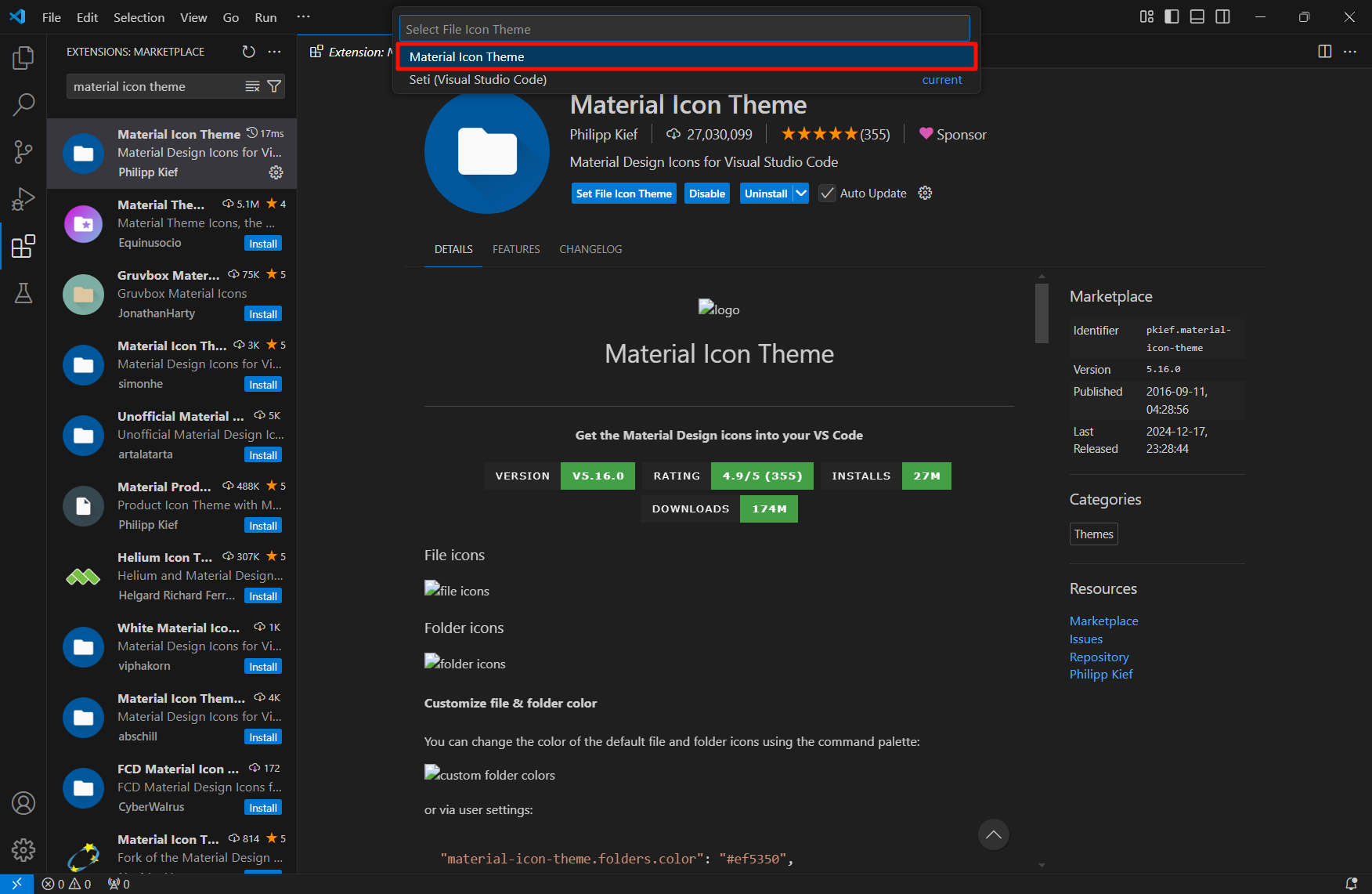
Material Icon Theme
Search for "material icon theme" in the expanded search bar, and select Material Icon Theme to install:
3.2.2, Remote-SSH
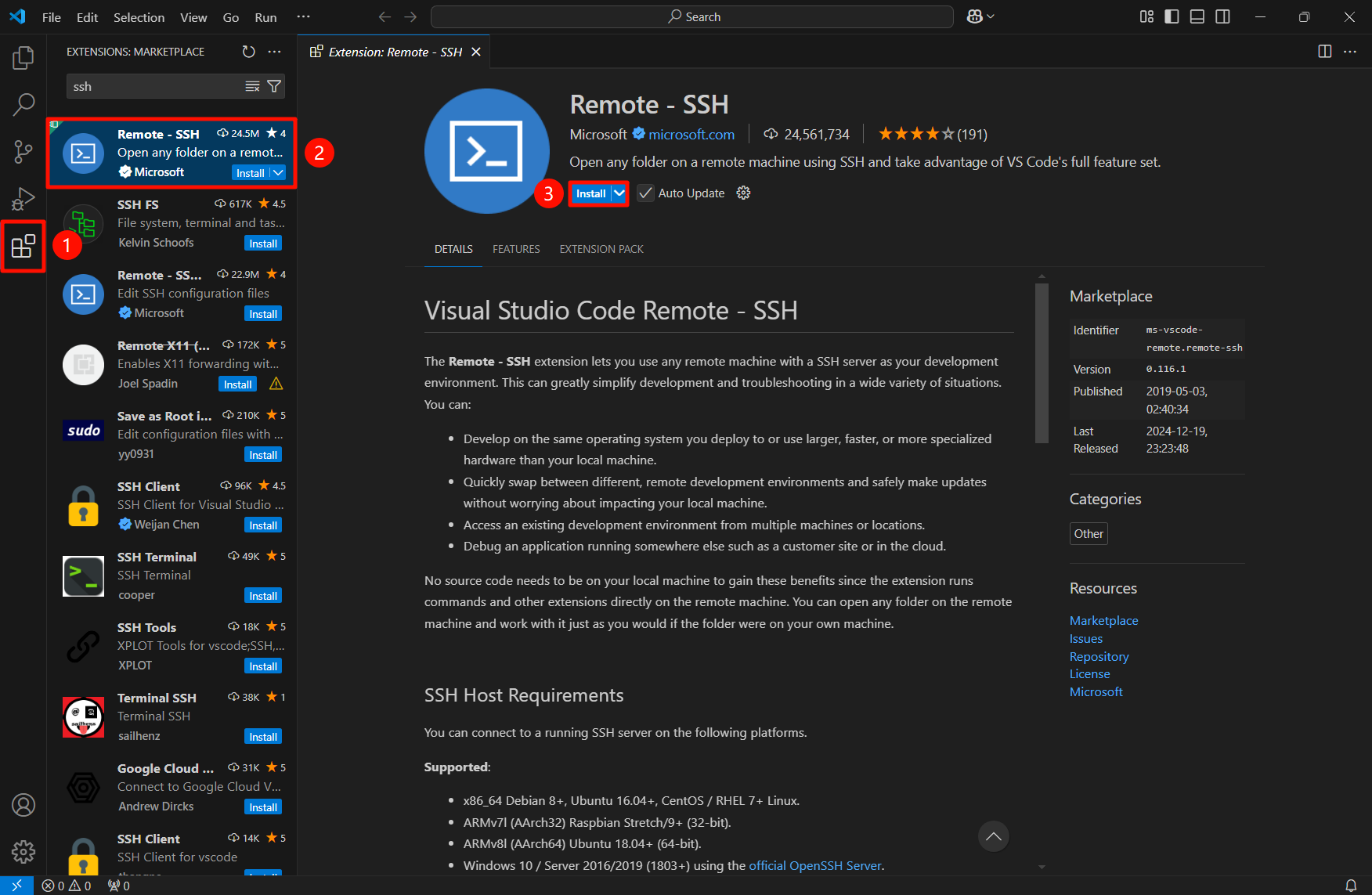
ssh installation
Search for "ssh" in the expanded search bar , select Remote-SSH to install:
ssh usage
After Remote-SSH is installed, you can use it directly through the status bar on the left!
Different users may have inconsistent path usernames in the configuration file, and there is no impression
Configure remote: modify the configuration file
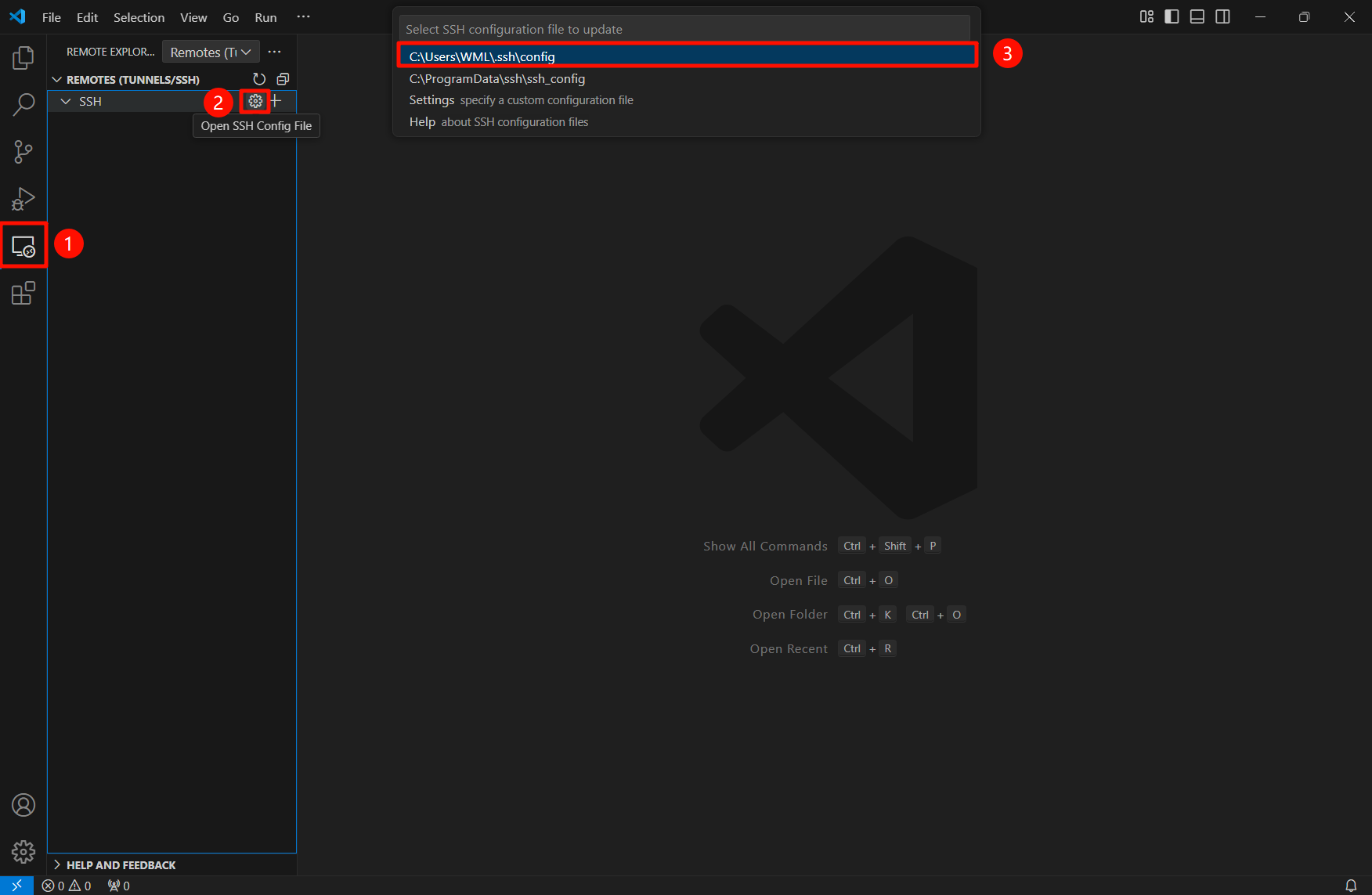
Configure remote: modify the configuration file
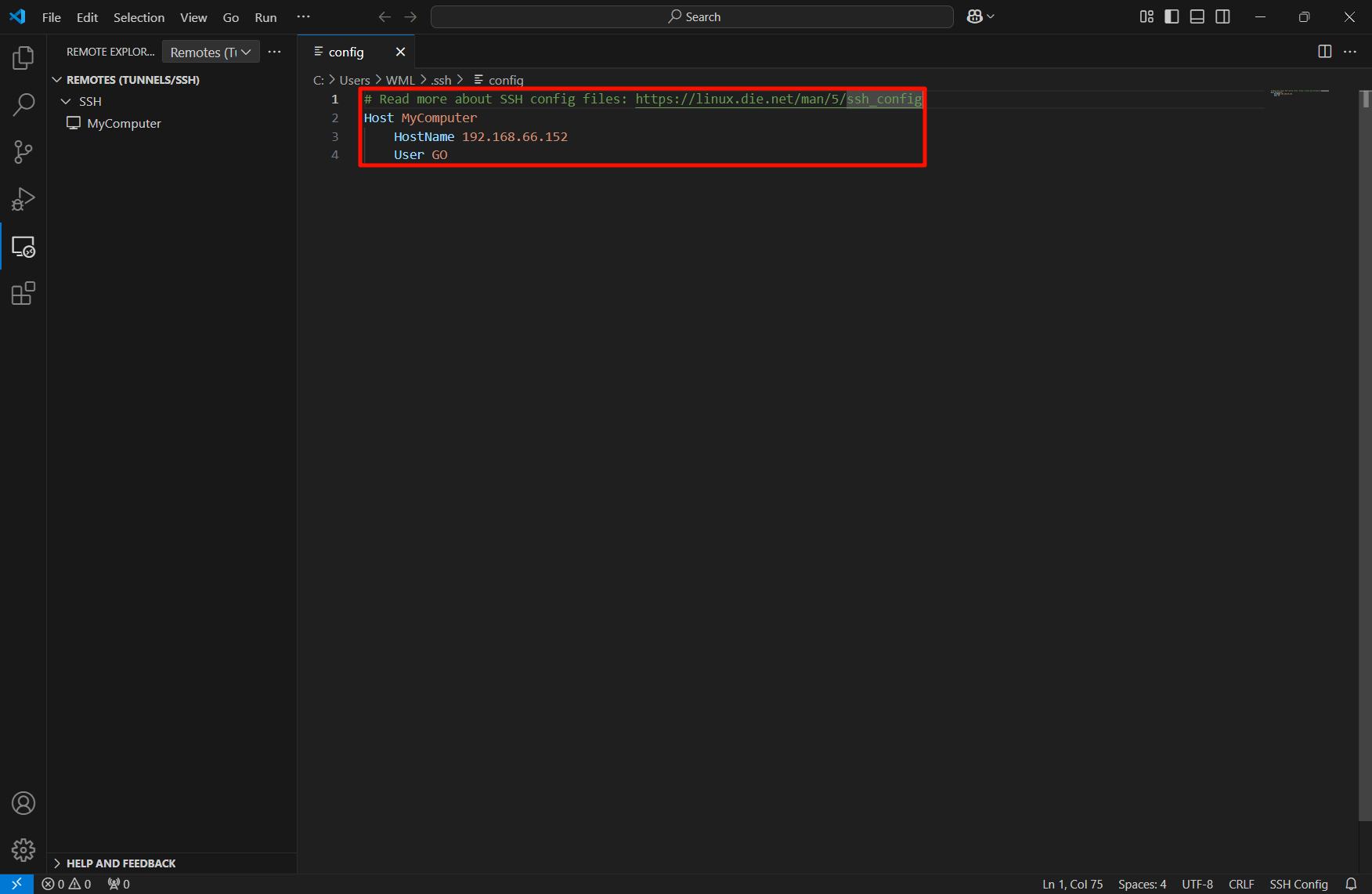
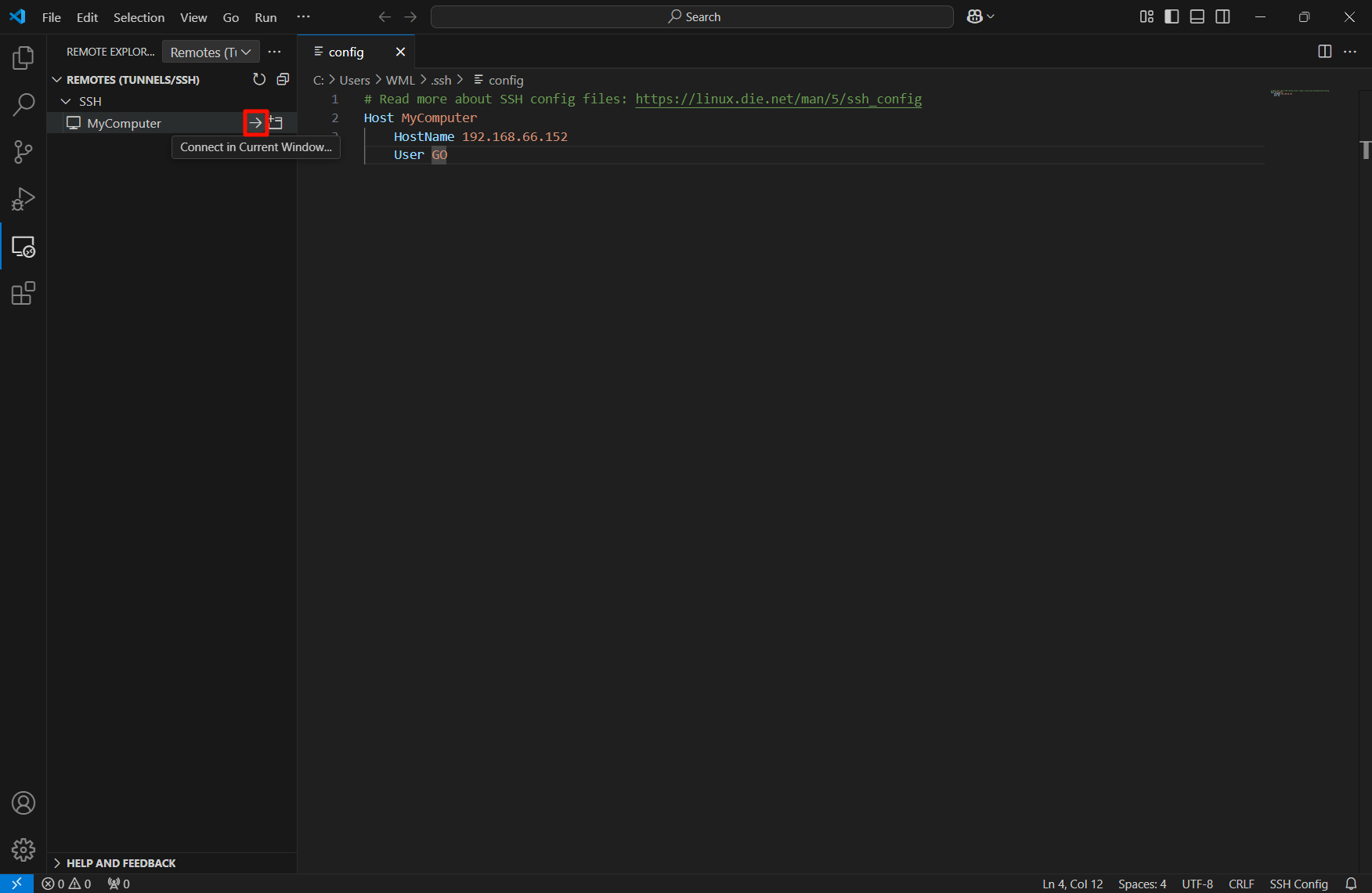
Fill in the device information that needs to be remote, the remote device needs to configure the SSH service and support SSH remote; after filling in, use the Ctrl+S shortcut key to save, and the corresponding SSH remote device will be automatically added on the left.
# Read more about SSH config files: https://linux.die.net/man/5/ssh_config
Host MyComputer # Remote device alias
HostName 192.168.66.152 # Remote device IP
User GO # Remote device user name
Remote
Select the remote device for SSH remote:
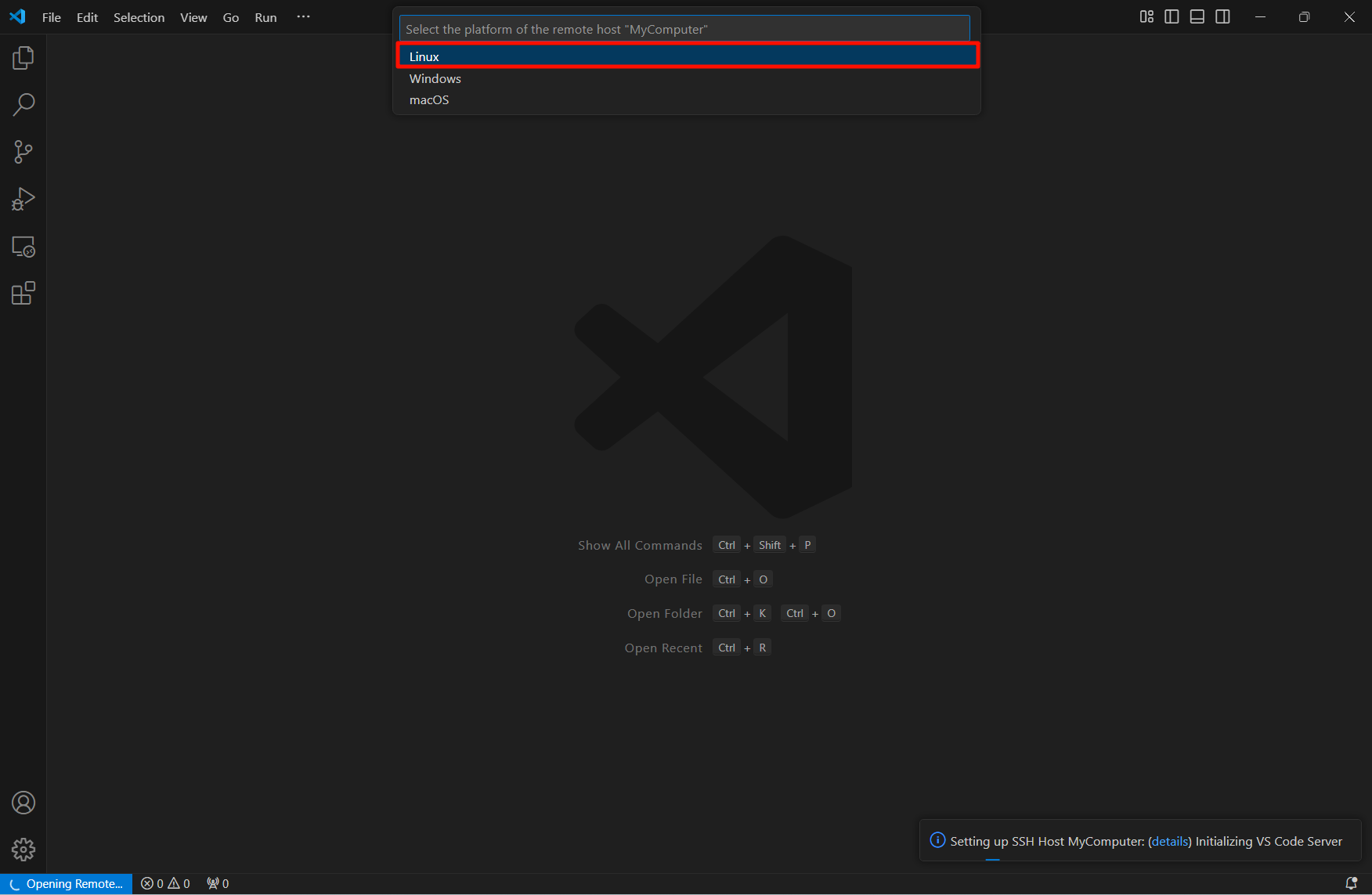
Select the remote device platform: fill in according to the actual platform
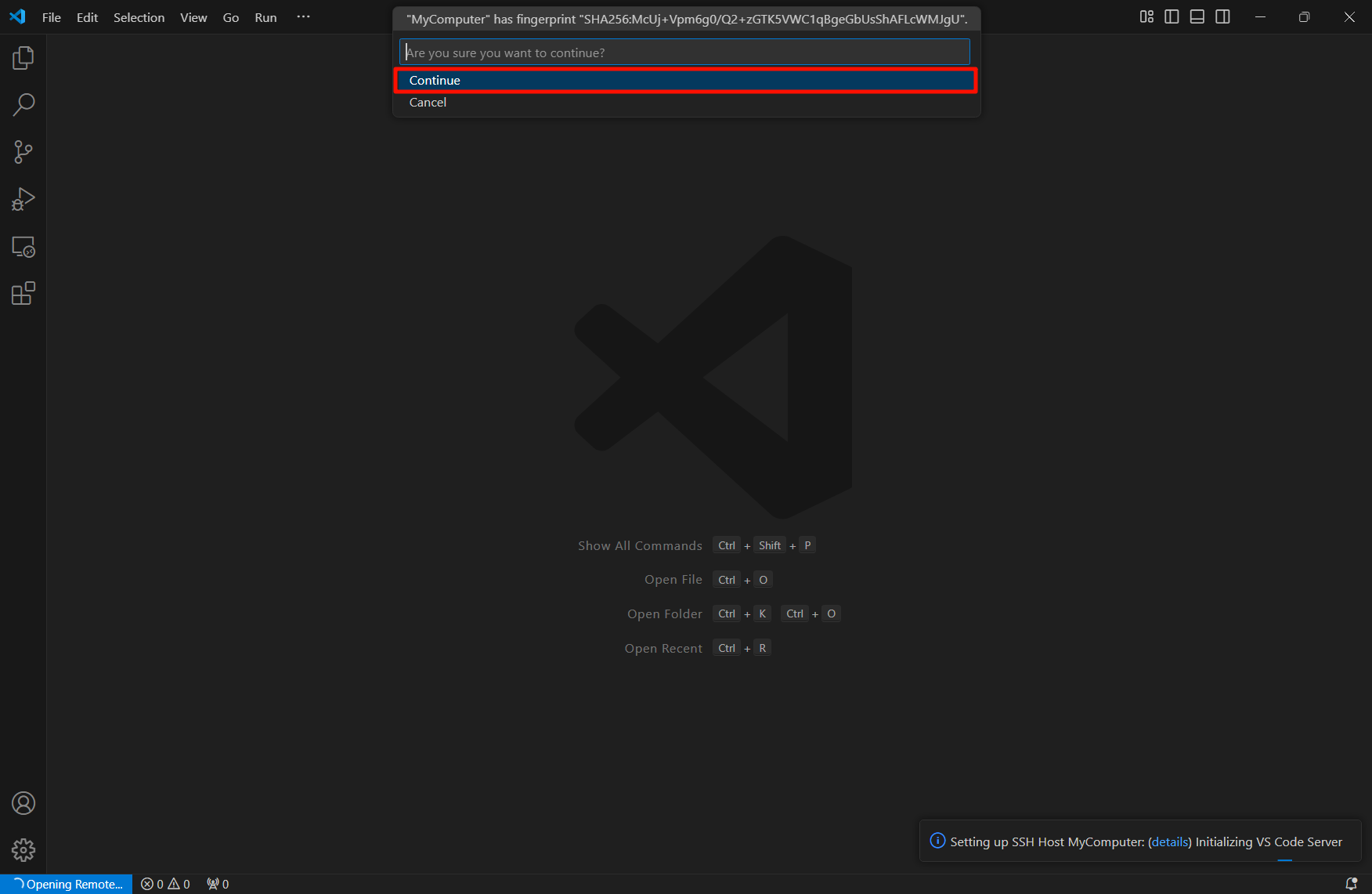
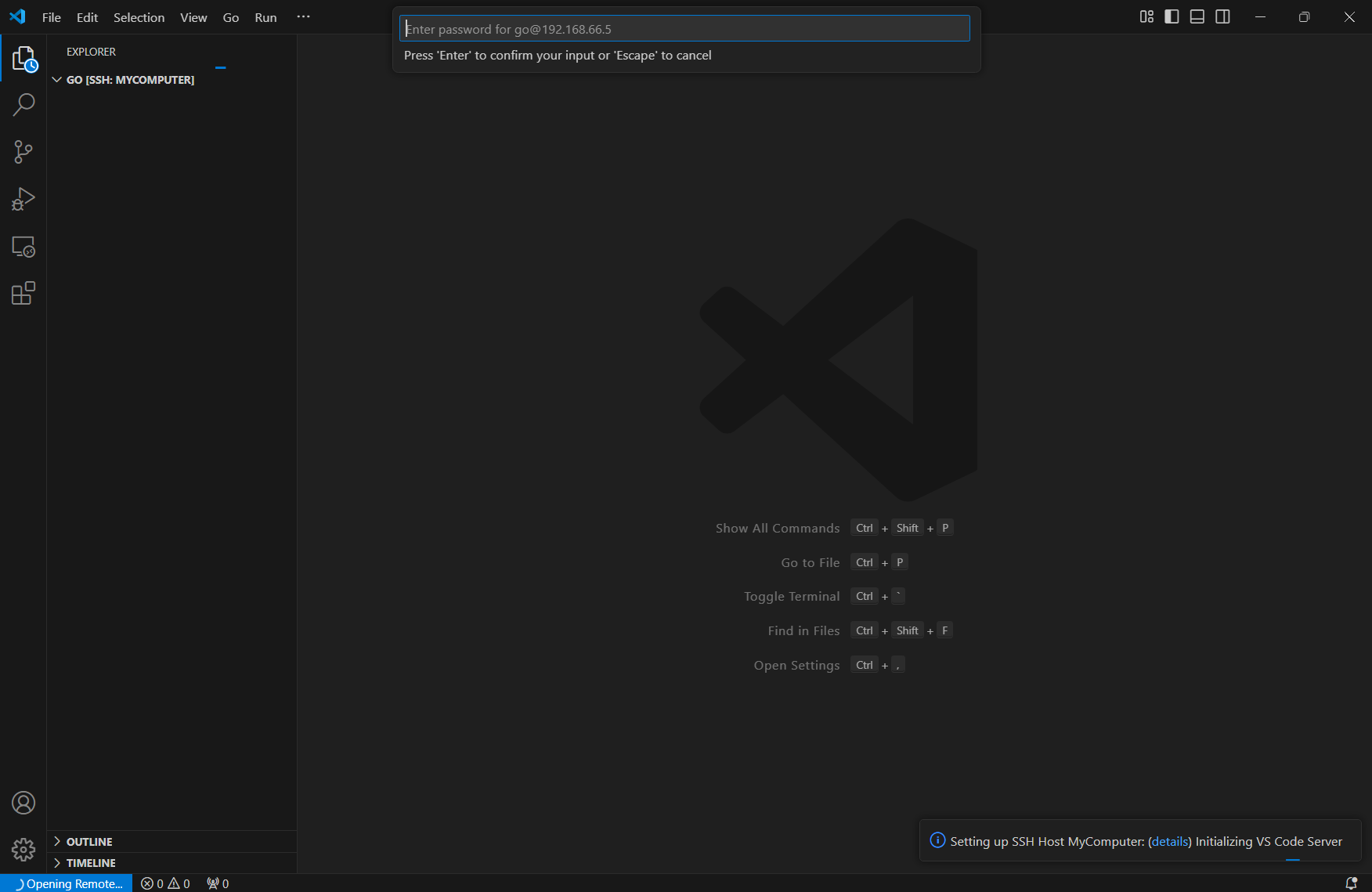
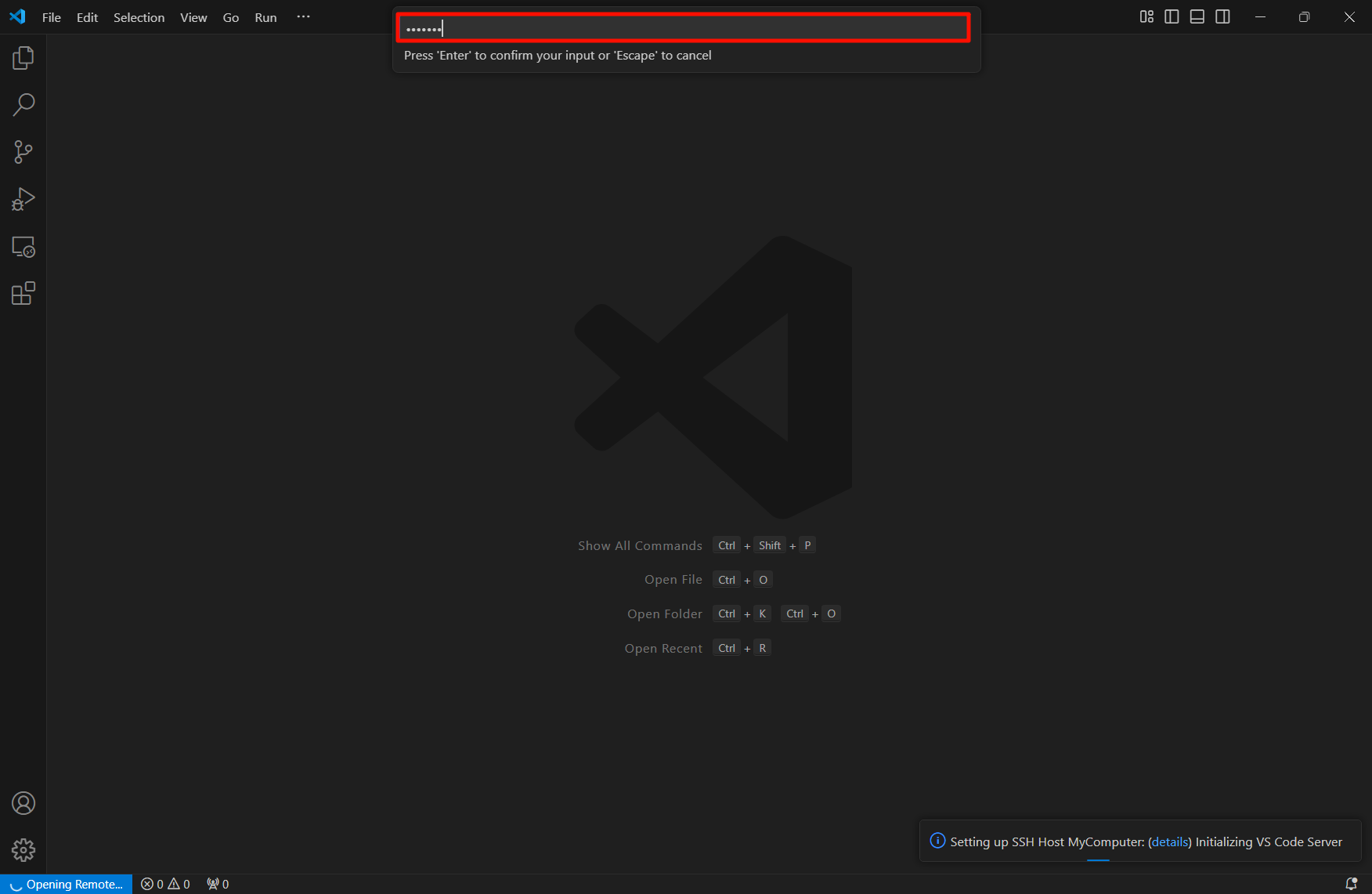
Fill in the password: Enter to confirm after filling in the password
Remote use
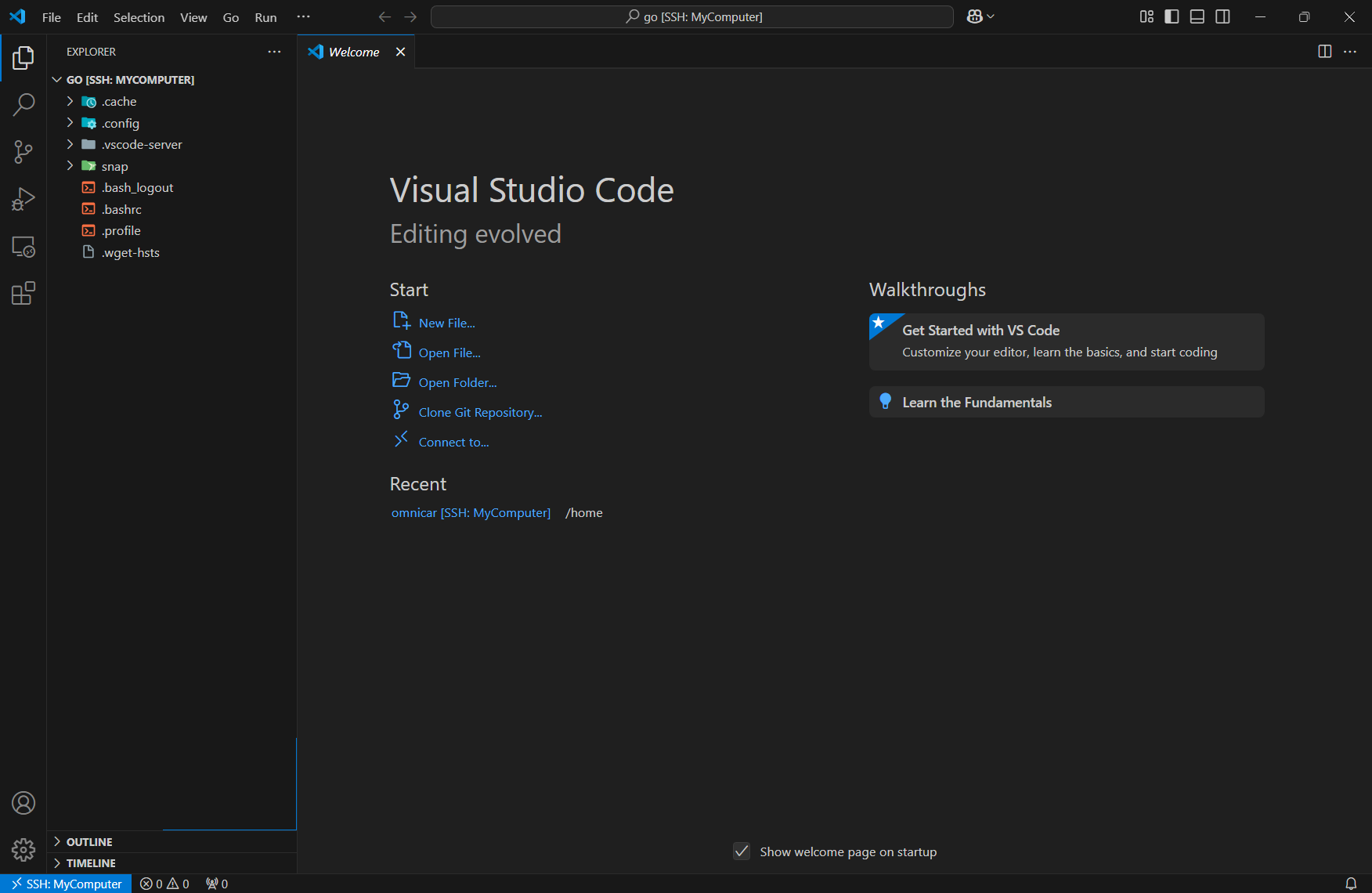
After the remote is successful, there is a prompt in the lower left corner; we can open the folder of the remote device through VSCode
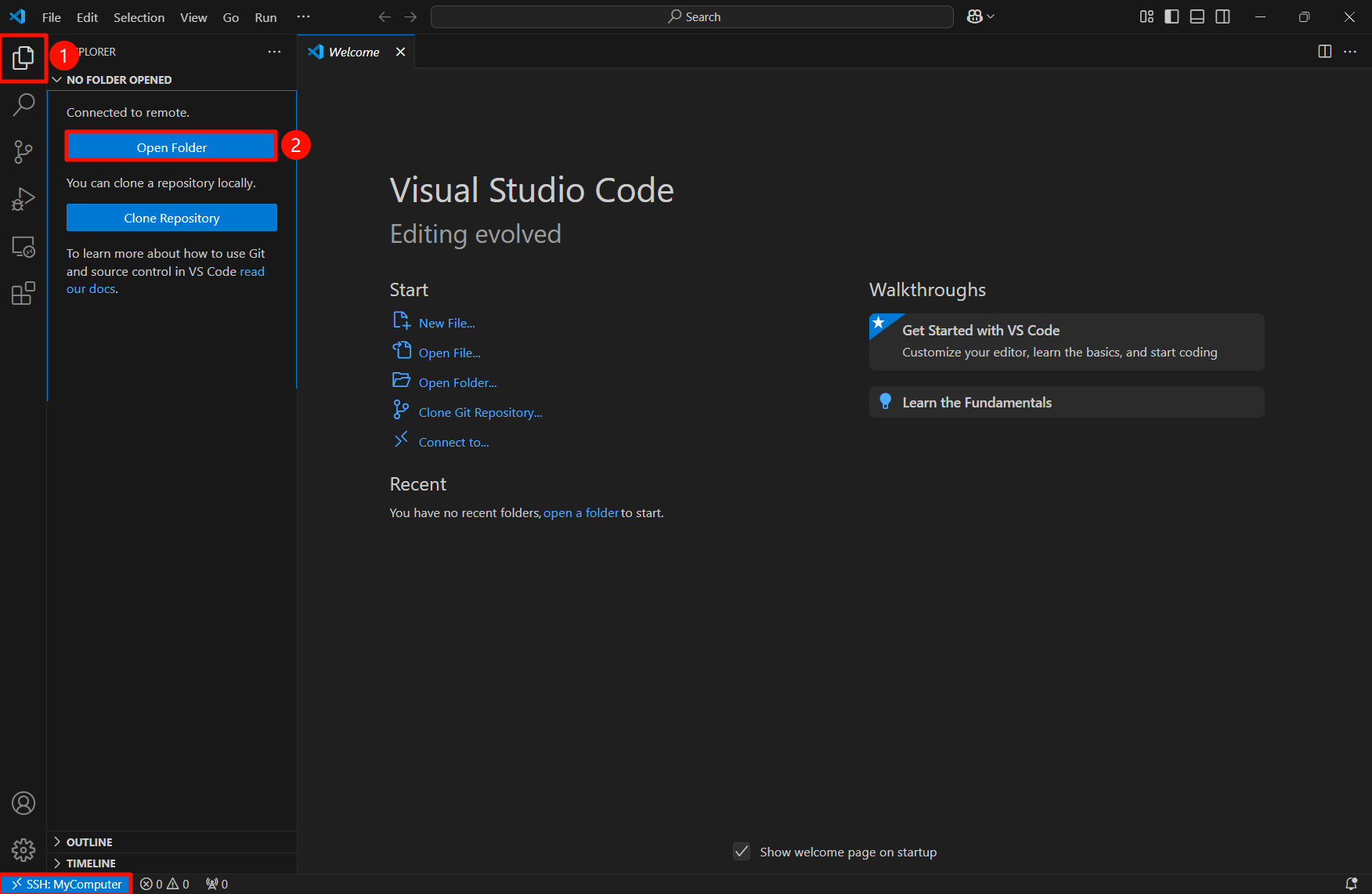
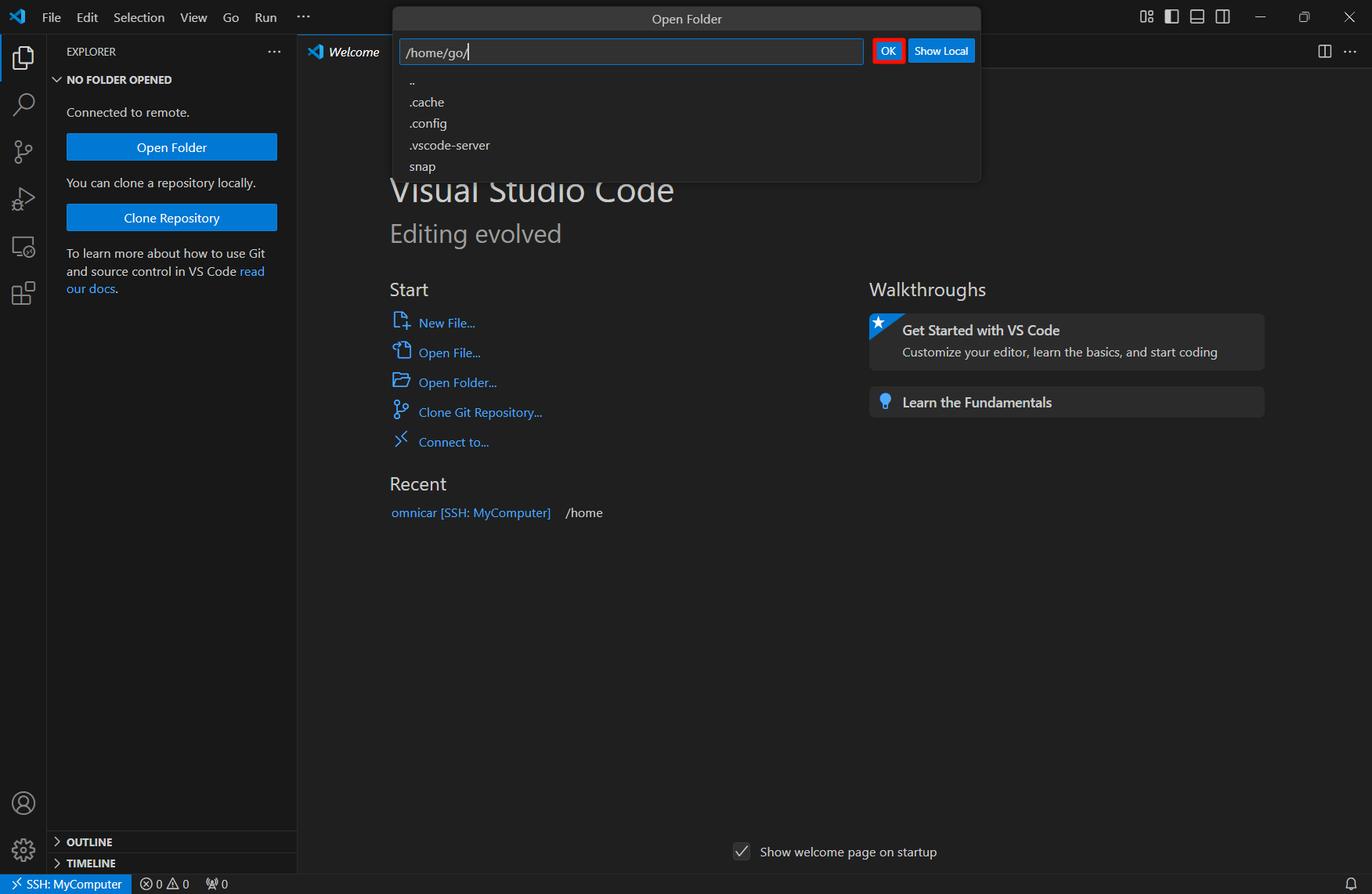
Enter the password again: